Use the iPhone and iPad app to check your agents, answer a request and talk to HQ while away from the Mac. A browser can also show the radar and let you type into panes.
Choose Pair or Share
| What you want | Use | Access |
|---|---|---|
| Connect your own iPhone, iPad or browser | Pair | Owner access to the Mac, including HQ and sharing controls |
| Let someone else watch or help with a task | Share | Only the panes you select; view-only or allowed to type |
Pair is for your own devices. Send collaborators a Share link.
Pair your iPhone or iPad
Install gtmux from the App Store. The same app works on both devices. Keep the Mac awake during setup and use.
- On the Mac, open the gtmux menu-bar app → Preferences → Remote access. Choose Local network if both devices are on a reachable local network, or Anywhere to connect from other networks. Follow the prompts to turn it on.
- In the menu bar, open Pair a device… to display the pairing QR.
- On the iPhone or iPad, tap Add a server → Scan pairing QR and scan it.
The Mac now appears in the app’s server list. Open it to see the radar. A pairing code works once; generate a new one for each device.
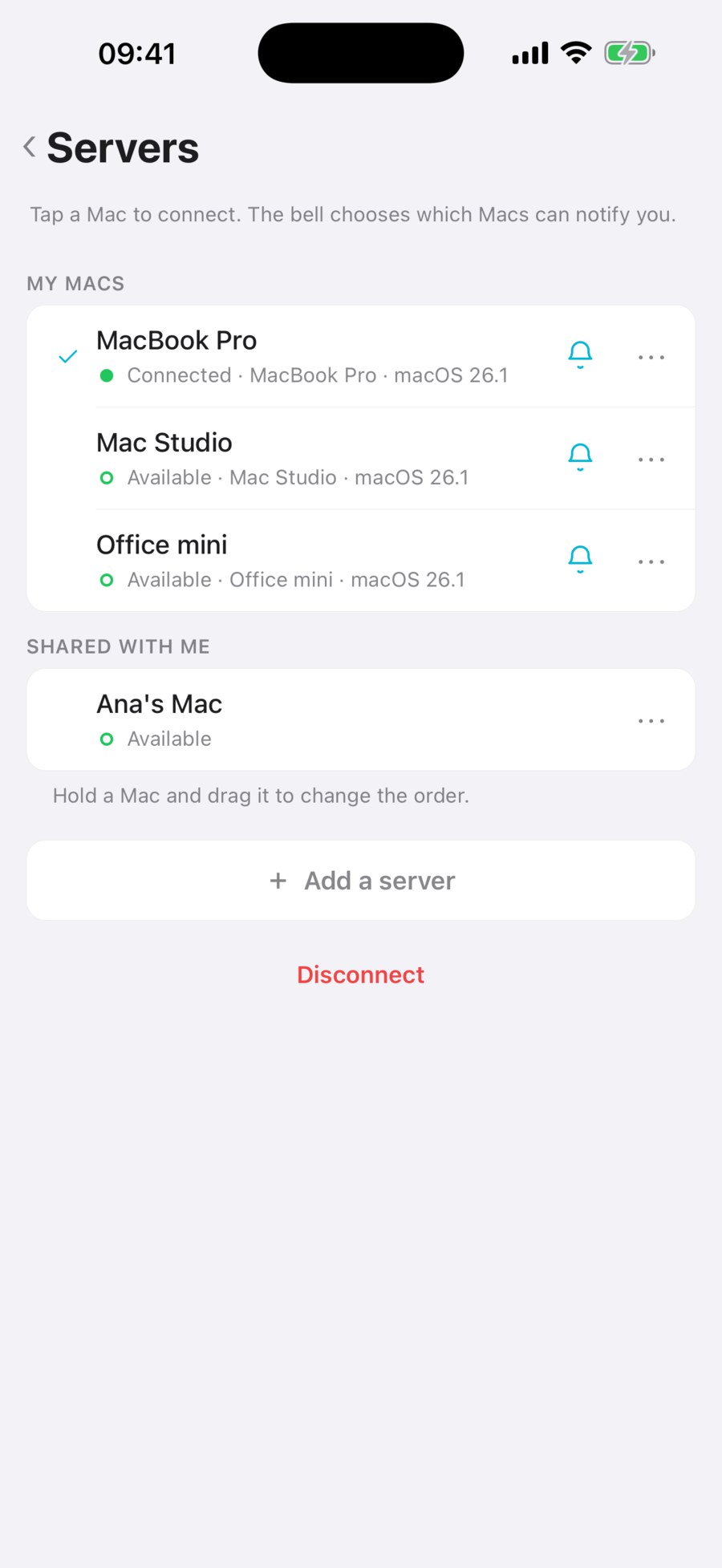
Prefer the terminal? Start gtmux serve on a local network or gtmux tunnel for remote
access, then run gtmux pair for the QR.
Pair a browser
Generate a fresh code with gtmux pair and open the browser link it prints. The browser
becomes your own paired device, with access to the radar and terminal input. Use Share
when someone else needs access.
Use the app
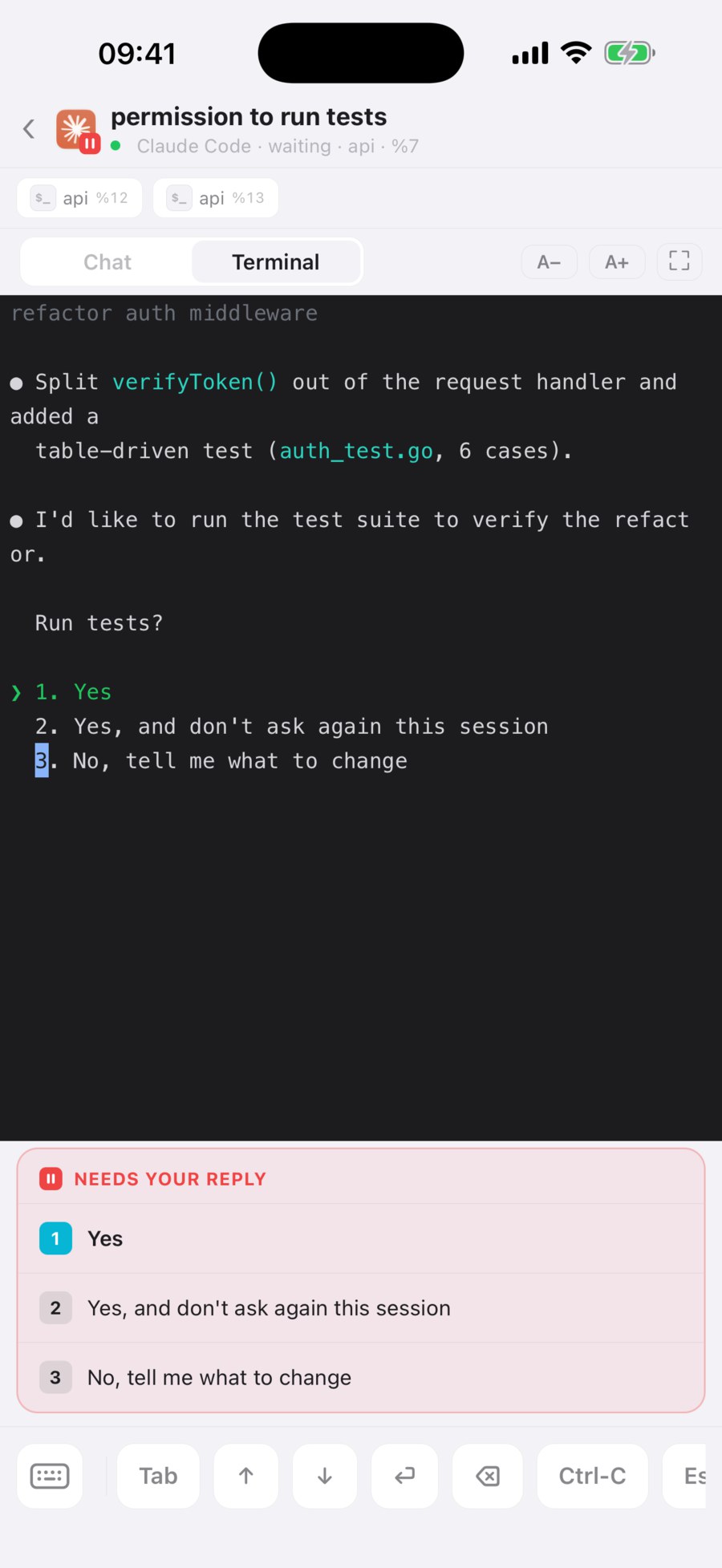
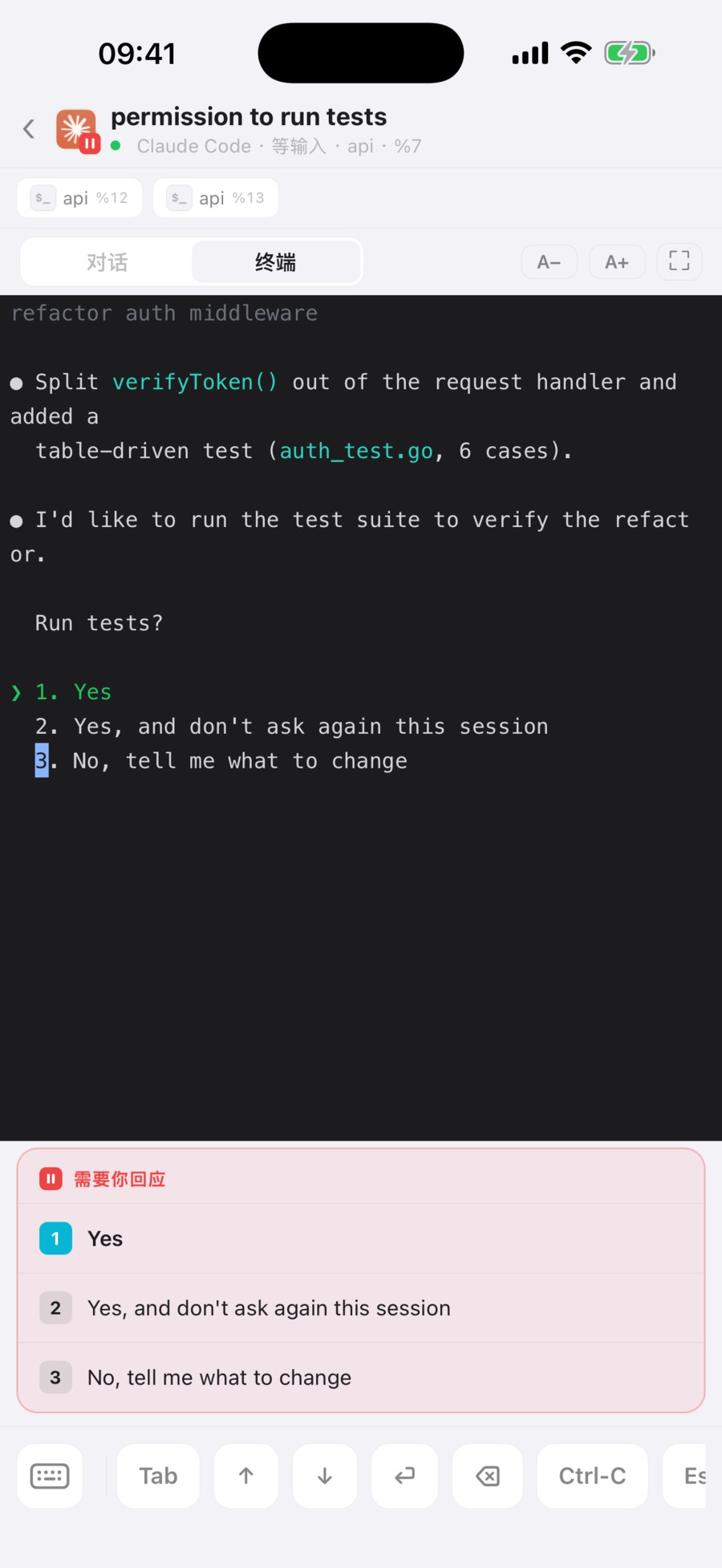
On iPhone, tap an agent to read its conversation or terminal. When it needs a reply, choose an offered answer or type your own. You can also send control keys or a screenshot.
Open the display icon in Chat or Terminal to adjust text size. Both modes use the same controls and size setting. Terminal also offers Wrap lines (default) / Original width. Wrap lines fits rows to your screen. Original width keeps the Mac’s row widths and allows horizontal scrolling, which helps with tables and diffs. A wide tmux pane on an external monitor produces wide rows; older history can also remain wide after the pane shrinks. The app does not resize the Mac pane. Exit full-screen to change display settings. For conversation prose, use Chat; Codex’s truncated pinned prompt has its own full-text reader.
An alternate-screen terminal provides its current frame; earlier conversation is available in Chat. gtmux does not prepend unrelated output from before that screen. Direct Codex sessions created or normally restored by gtmux use inline mode to preserve future terminal history. For a manually started session, use codex --no-alt-screen at its next launch; do not start a second client for the same conversation. Previously unrecorded terminal redraws cannot be recovered.
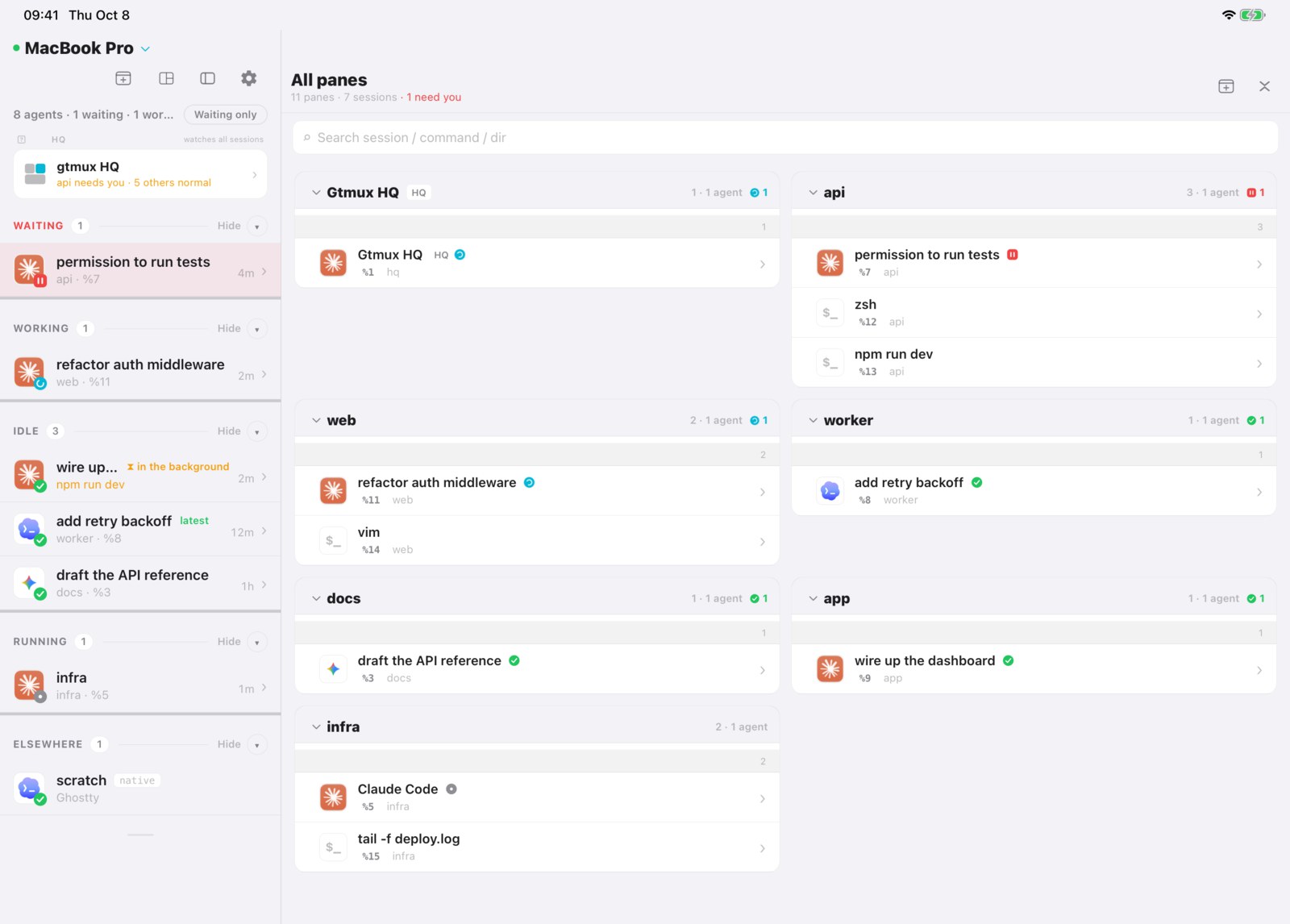
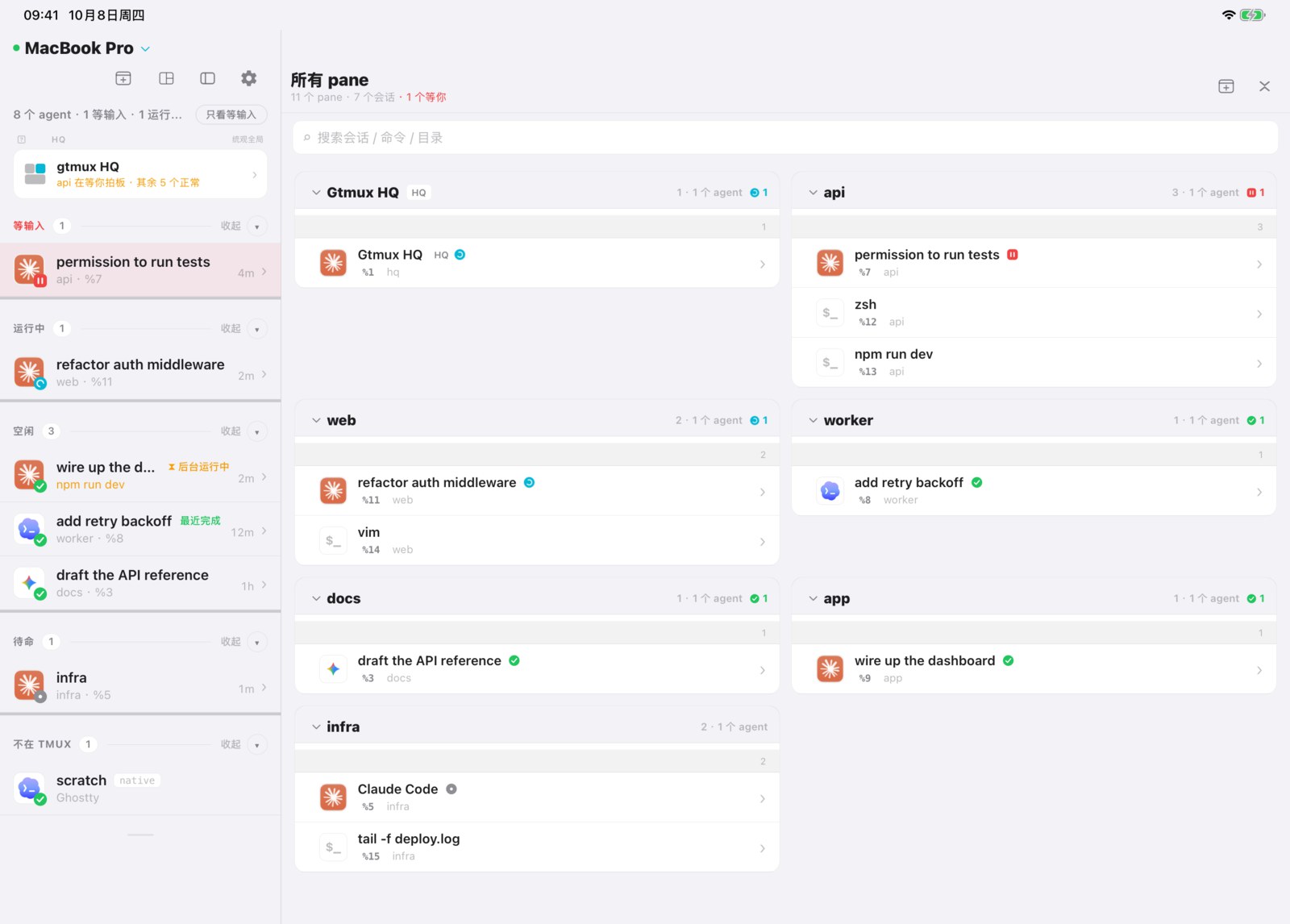
On iPad, a wide window keeps the radar in a sidebar and the selected session beside it. Tap another row to switch sessions. A narrow window uses the iPhone layout.
Open HQ for its conversation, situation board and knowledge base. Tap the server name to switch between Macs. To create a shell session on a paired Mac, tap New session; you can start your agent in the terminal it opens.
Allow iOS notifications if you want alerts when an agent needs you or finishes. The Mac must stay awake with serve running; delivery also depends on network and notification settings. A guest connection does not receive these notifications.
Open one pane to a collaborator
In the Mac menu-bar app, open Preferences → Sharing → New share…. Enter a label, select which panes the guest can See, and tick Type only where they may send input. Create the link and send it to them. They open it in a browser or redeem it in the iOS app.
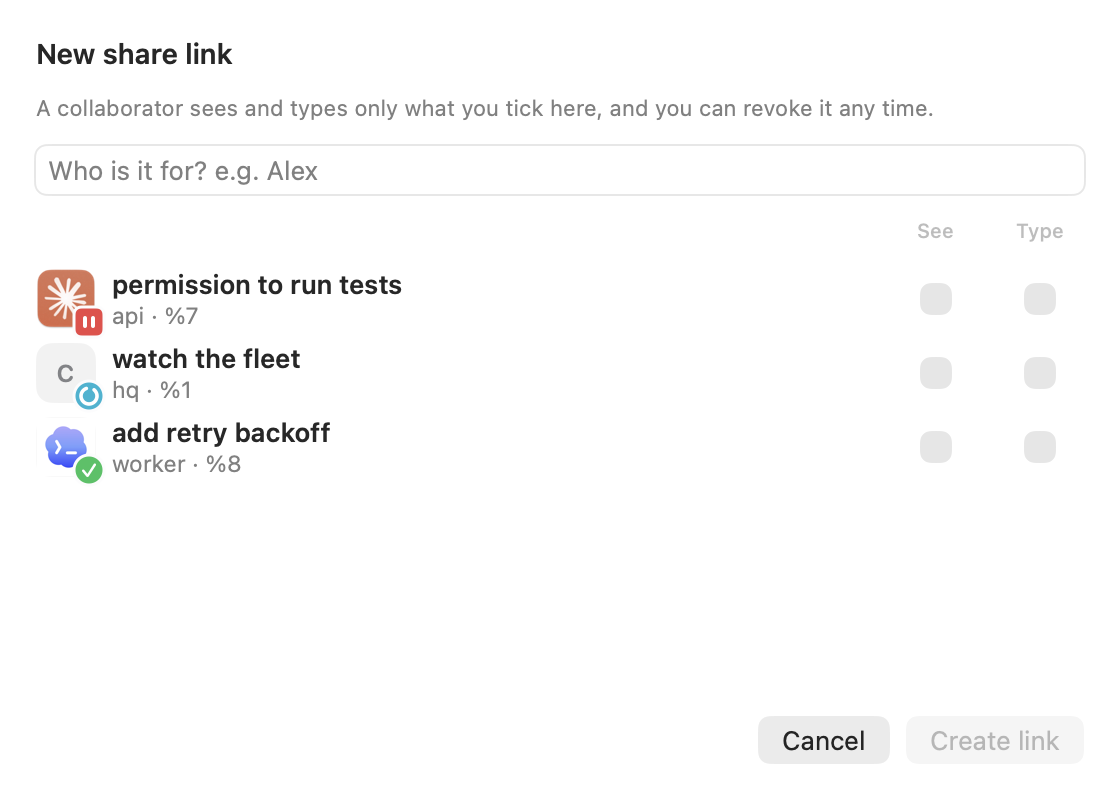
For input to work, also enable guest typing in Sharing. A view-only link needs no input permission. Guests do not see the HQ page or owner controls.
From the terminal, a view-only link that expires in 24 hours is:
gtmux share new --label alice --view %7 --expires 24hReplace %7 with the pane you want to share (gtmux panes lists the IDs). To allow
replies in that pane, add --type %7 when creating the link and enable gtmux share on.
A guest who can type can operate the programs in that pane, with those programs’ permissions.
End access
Revoke a guest link in Sharing when the task is done, or use gtmux share revoke <id>.
You can also manage guest links from a paired phone under Settings → Sharing & pairing.
If your own device is lost, revoke it on the Mac: gtmux devices lists its ID, and
gtmux devices revoke <id> removes its access. Keep pairing codes and share links private.
Connection choices or a connection problem? Remote access reference. Want a full terminal on another computer? Attach from any computer. Full parameters: Pair · Share.
Identify paired devices
In Mac Preferences → My devices · Pairing, use the pencil beside a device to edit its display name. For example, distinguish your work iPhone from your personal one. This is a gtmux label; it does not change the device’s system name or require pairing again. The same label appears in the app’s paired-device list.
iOS normally supplies a generic iPhone/iPad label. Reading a user-assigned name such as “ccy’s iPhone” requires an entitlement granted by Apple; gtmux does not assume it has this permission. Browsers appear as Browser, with the browser family, major version and OS when available. These details are approximate client information, not a hardware model. An old entry showing Client details unavailable updates when that device reconnects; a new pairing is unnecessary.
Chat formatting and reply actions
Chat renders Markdown in both user messages and agent replies on iPhone, iPad and Web. Long user messages on the app keep a compact preview; expand one to read its formatting. Text remains selectable.
On iPhone and iPad, Copy reply below a reply copies the whole turn’s text, including folded segments, as Markdown. Tool output and your prompt are excluded. Share opens the system share sheet with the same text. For an unfinished turn, these actions use the text received so far.
Codex terminal history and titles
For a manually launched Codex, start the next session with codex --no-alt-screen (two leading hyphens). To resume an existing conversation, first exit its old client, then run codex --no-alt-screen resume <SESSION_ID> with the same model, effort and permission options. This preserves future terminal scrollback; it cannot recover old overwritten frames. /raw changes presentation and does not by itself disable alternate-screen mode. See Codex handling and the official CLI reference.
A tmux session’s displayed title comes from its terminal title. If Codex includes a project or directory (for example Review changes | project), gtmux preserves it. The app does not append that suffix. Codex’s tui.terminal_title controls title components; native sessions use their recorded conversation title when available. A | in a title is not sufficient evidence to strip text. See the official configuration reference.
Source: docs/guides/phone-and-web.md at v1.0.114 · Edit on GitHub
离开 Mac,也能用 iPhone/iPad 查看 agent、回复请求、和 HQ 对话。浏览器也能查看雷达、向 pane 输入。
先选 Pair 还是 Share
| 你想做什么 | 用哪个 | 权限 |
|---|---|---|
| 连接自己的 iPhone、iPad 或浏览器 | Pair(配对) | Mac 的 owner 权限,包括 HQ 和分享管理 |
| 让别人查看或协助一项任务 | Share(分享) | 只开放你选的 pane,可设为只读或允许输入 |
自己的设备用 Pair;给协作者发 Share 链接。
配对 iPhone 或 iPad
从 App Store 安装 gtmux。同一个 app 适用于两种设备,连接和使用时 Mac 要保持唤醒。
- 在 Mac 菜单栏 app 打开「偏好设置 → 远程访问」。同一局域网内、设备之间能互通时选「局域网」;需要跨网络使用时选「任意网络」,按提示开启。
- 在菜单栏打开「配对设备…」,显示配对二维码。
- 在 iPhone/iPad 点「添加服务器 → 扫描配对二维码」,扫描它。
Mac 会出现在 app 的服务器列表里,打开后就是雷达。配对码只能用一次,每台设备生成新码。
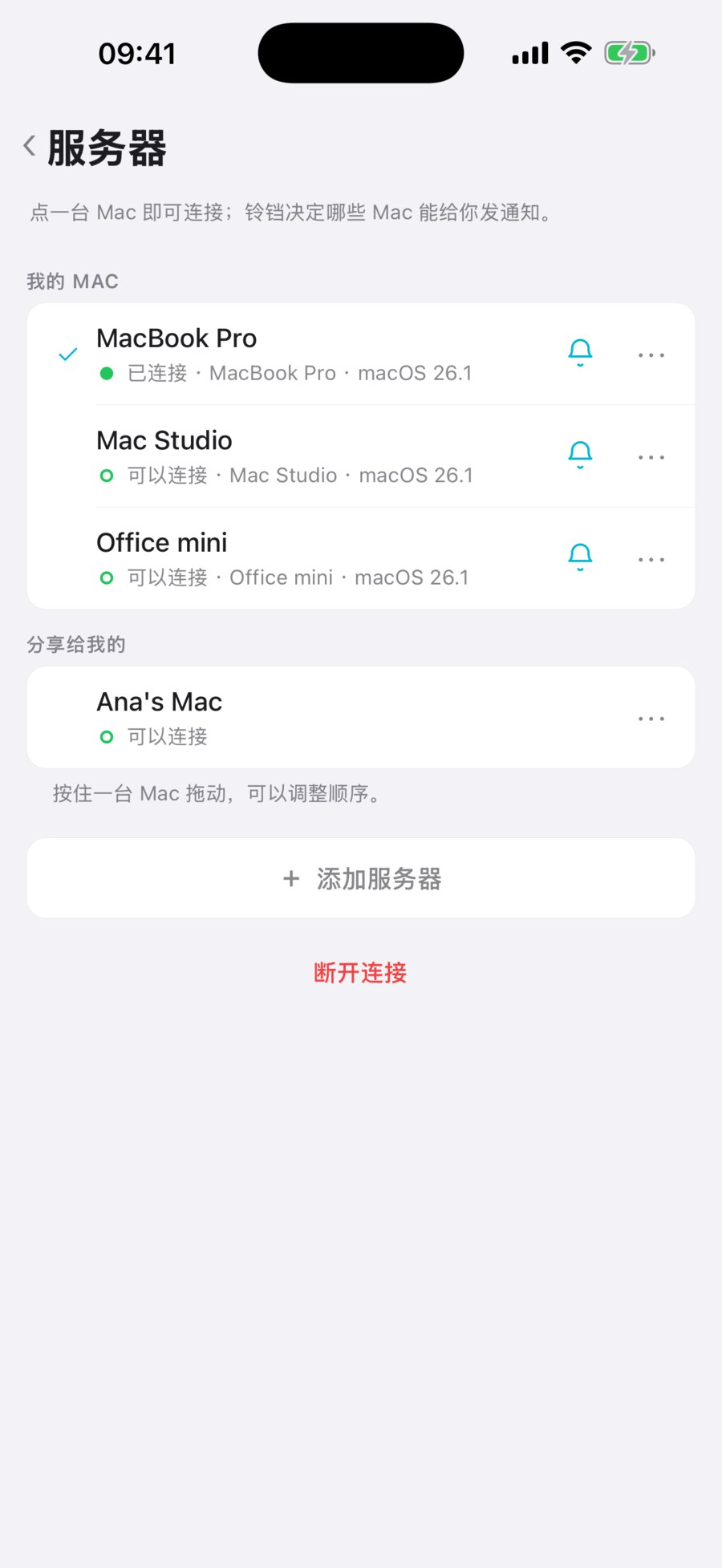
也可以用终端:同一局域网运行 gtmux serve,跨网络运行 gtmux tunnel,再用 gtmux pair 获取二维码。
配对浏览器
用 gtmux pair 生成新码,打开它给出的浏览器链接。这个浏览器会成为你自己的已配对设备,可以查看雷达、向终端输入。别人需要访问时,请用 Share。
在 app 里操作
iPhone: 点一个 agent,查看对话或终端。需要回复时,点它给出的选项,或输入自己的回答;也能发控制键和截图。
在对话或终端顶部点显示图标即可调整字号,两种模式使用相同控件并共用字号设置。 终端另外提供「自动换行」(默认)/「原始行宽」。 前者按屏幕宽度折行;后者保留 Mac 的行宽,可左右滚动,适合看表格和代码差异。 外接大屏上的 tmux 窗格较宽时,行也会较宽;缩小窗格后,旧历史仍可能保留宽行。这个设置不会改变 Mac 窗格。 全屏时先退出全屏再调整。对话正文可用对话模式,Codex 截断的吸顶提示另有全文入口。
使用独立画面的终端程序只提供当前画面,更早的会话内容可在对话模式中查看。gtmux 不会把进入该画面前的旧输出接在前面。gtmux 直接创建或按标准流程恢复的 Codex 使用行内模式,保留后续终端历史。手动启动的会话可在下次启动时使用 codex --no-alt-screen,不要为同一段对话再开一个客户端。未写入终端缓冲区的旧画面无法补回。
iPad: 宽窗口下,雷达在侧栏,选中的会话在旁边主区显示,点另一行即可切换。窄窗口使用 iPhone 的布局。
打开 HQ 可以查看对话、态势板和知识库;点服务器名称可以切换 Mac。在已配对的 Mac 上点「新建会话」,会打开一个 shell 终端,再从那里启动 agent。
想在 agent 等你或跑完时收到通知,请允许 iOS 通知。Mac 要醒着、serve 要运行,送达还受网络和通知设置影响。访客连接不接收这些通知。
把一个 pane 开给协作者
在 Mac 菜单栏 app 打开「偏好设置 → 分享 → 新建分享…」。填一个名称,勾选对方「可见」的 pane,只在需要对方回复的 pane 上勾「输入」。创建链接后发给对方,对方可在浏览器打开,或在 iOS app 中兑换。
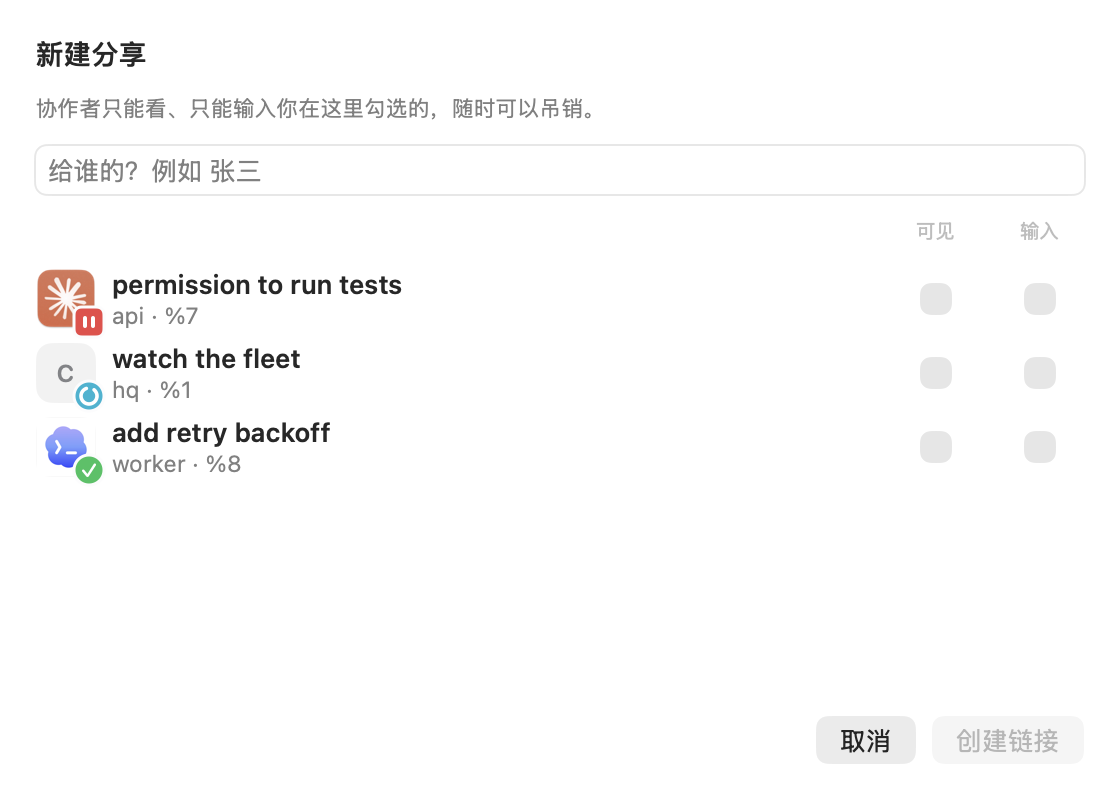
允许输入时,还要在分享设置里开启访客输入总开关。只读链接不需要输入权限;访客看不到 HQ 页面和 owner 管理功能。
终端里创建一个 24 小时后过期的只读链接:
gtmux share new --label alice --view %7 --expires 24h把 %7 换成要分享的 pane(gtmux panes 可查看编号)。要让对方回复,创建时加上 --type %7,并开启 gtmux share on。能输入的访客可以操作 pane 里的程序,权限与程序本身相同。
结束访问
任务结束后,在分享设置中吊销访客链接,或用 gtmux share revoke <id>。已配对手机的「设置 → 分享与配对」也能管理访客链接。
自己的设备丢失时,要在 Mac 上吊销:gtmux devices 查看设备 ID,gtmux devices revoke <id> 移除访问权限。配对码和分享链接都不要公开。
选择连接方式或排查问题:远程访问参考。想在另一台电脑上直接用终端:从任意电脑接回会话。完整参数:Pair · Share。
区分已配对的设备
在 Mac 偏好设置 → 我的设备 · 配对 中,点击设备旁的铅笔编辑名称。 例如,把两台 iPhone 分别标记为工作手机和个人手机。这只是 gtmux 中的显示名称, 不会修改设备的系统名称,也不需要重新配对。App 的已配对设备列表会显示同一名称。
iOS 通常只提供 iPhone/iPad 这样的通用名称。读取“ccy’s iPhone”这类用户设定的名称, 需要 Apple 授予专门权限;gtmux 不会假设已经获得这项权限。浏览器统一显示为 Browser,并在可获取时显示浏览器名称、主版本和系统。这些是客户端信息, 不能用来确定硬件型号。旧设备若显示暂无客户端信息,重新连接后会更新,无需重新配对。
对话格式与回复操作
iPhone、iPad 和 Web 的对话模式都支持用户消息与 agent 回复中的 Markdown。App 中的长消息保留简短预览,展开后显示完整格式;正文仍可选择文字。
在 iPhone 和 iPad 上,回复下方的「复制全文」会复制这一轮回复的 Markdown 原文,包含已折叠的文字段落,不包含工具输出和用户提问。「分享」会打开系统分享面板。回复尚未结束时,复制或分享的是目前已收到的内容。
Codex 的终端历史与标题
手动启动 Codex 时,可使用 codex --no-alt-screen(开头是两个短横线)。恢复已有对话时,先退出旧客户端,再用 codex --no-alt-screen resume <SESSION_ID> 启动,并保留原来的模型、effort 和权限参数。这能保留后续终端滚动历史,无法补回已经覆盖的旧画面。/raw 只调整显示方式,不能直接替代这个启动参数。详见 Codex 特殊处理 和官方命令说明。
tmux 会话显示的是终端标题。Codex 若把项目或目录放进标题,例如「检查改动 | project」,gtmux 会保留这一部分,手机端没有另外拼接。标题组成由 Codex 的 tui.terminal_title 配置控制;tmux 外的会话则优先使用记录中的对话名称。因此并非所有 Codex 标题都会带目录,也不能仅凭 | 就删除后半段。参见官方配置说明。
来源:docs/guides/phone-and-web.zh.md(v1.0.114)· 在 GitHub 上编辑